
Redefine Stable Aerial Filming
Advanced 3-Axis Stabilization Technology
Support upright and inverted installation for 4 models of action cameras, allowing seamless integration with a wide range of fixed-wing aircraft and FPV platforms.
Its lightweight structure minimizes impact on flight dynamics, helping your aircraft remain agile, responsive, and stable even at high speeds.
Supports SBUS, PWM, CRSF and MAVLink input protocols, making it much convenient to build and customize your ideal gimbal system.
See More. Shake Less.
The mechanical stabilization system effectively reduces vibration and high-speed camera shake. Whether you’re flying through tight gaps at speed or skimming low over terrain, enjoy smoother footage and a more immersive FPV experience.
Any Platform. Any Application.
Designed to support upright, inverted, and other installation configurations, the G-Port adapts effortlessly to quadcopters, VTOL fixed-wing aircraft, RC cars, and more. Unlock new creative perspectives across a wide range of applications.
One App. Full Control.
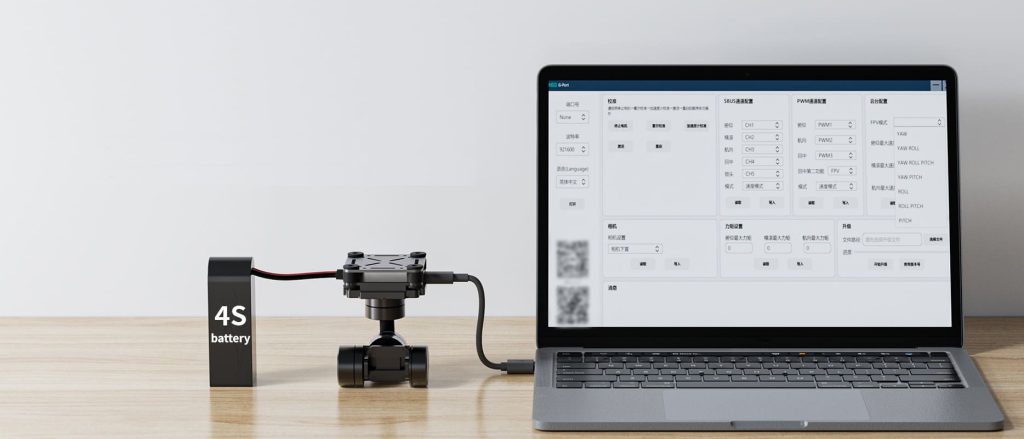
Switch freely between FPV Mode and Stabilization Mode, and fine-tune multiple parameters through the ground control software. Customize the gimbal’s performance to match your flying style and shooting preferences.
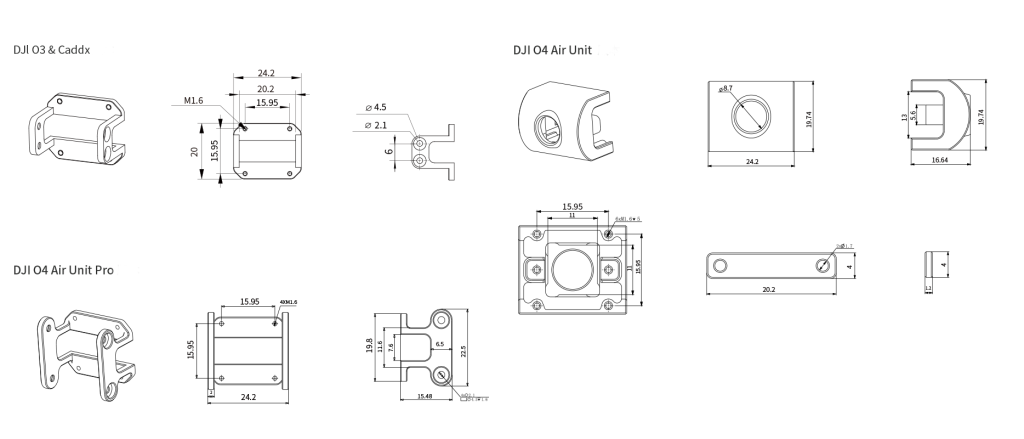
Compatible with FPV Cameras
Supports leading FPV camera models including DJI O3, DJI O4, DJI O4 Pro, and CADDX cameras. Whether you prioritize image quality, low latency, or flight performance, the G-Port integrates quickly into your setup, making it easy to build a personalized FPV gimbal system.
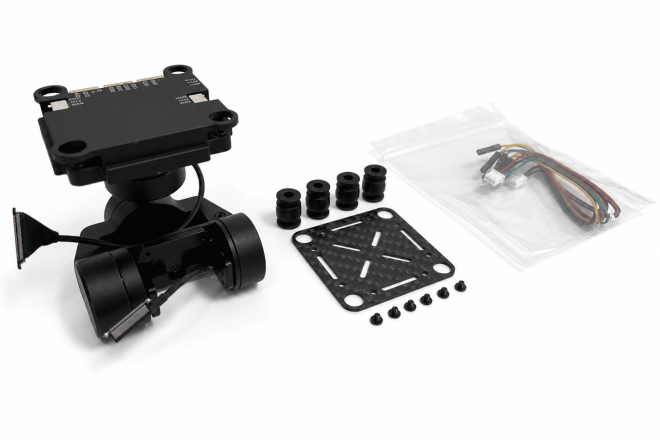
Packing List
G-Port Gimbal Component x1
Damping Balls x4
Carbon Fiber Mounting Plate x1
G-Port Cables x3
Mounting Screws x6
User Manual x1
Specifications
| Axis Type | 3-Axis Mechanical Stabilization |
| Weight |
DJI O3 & Caddx Version: 67g DJI O4 Air Unit Version: 75g DJI O4 Air Unit Pro Version: 71g |
| Mechanical Range |
Pitch: -135° to +45° Yaw: -135° to +135° Roll: -45° to +45° |
| Operating Voltage | 12–18V |
| Supported Control Protocols | SBUS / PWM / MAVLink / CRSF |
| Compatible Camera Types | DJI O3 / O4 / O4 Pro / CADDX / Analog Cameras |
| Dimensions | 48.5 × 49 × 67.5mm |
Can I use the gimbal right out of the box after purchase?
Yes. The G-Port gimbal comes configured in Stabilization Mode by default and can be used immediately after installation.
If you wish to adjust parameters or customize performance, you’ll need to use the HEQ Ground Control Software. Please download the corresponding software and firmware from the Downloads section. The software is currently available for Windows only.
I'd like to buy one, but I'm worried it might be difficult to use.
You can visit the HEQ YouTube channel to watch our G-Port gimbal tutorial series before making a purchase decision.
We also publish firmware updates, setup guides, and feature demonstrations on the channel to help users get the most out of their gimbals.
Is the gimbal waterproof?
No. The G-Port gimbal is not waterproof.
If waterproof protection is required, we recommend purchasing and installing a suitable protective cover or enclosure.
Can I disable FPV Mode if I don't want to use it?
Yes.
FPV Mode is activated through a dedicated self-centering channel on the transmitter:
- 1000–1400: Stabilization Mode
- 1600–2000: FPV Lock-Axis Mode
For the best user experience, we recommend using a transmitter equipped with a 3-position switch.
Does the gimbal support ELRS or CRSF protocols?
Not directly.
However, the gimbal can be connected using an ELRS-to-SBUS conversion module. Wiring diagrams are available, and users can purchase a compatible converter separately.
The gimbal does not work after power-up.
- The gimbal is powered on, but there is no response.
- Please verify the power supply voltage is within the supported range: 12V–18V
- Using a voltage higher than 18V may damage the main control board.
- The ground control software cannot connect to the gimbal.
- Verify the connection sequence: Connect the power supply first, then connect the gimbal to your computer using a USB Type-C cable.
The software currently supports Windows only.
Check the USB cable: Make sure the Type-C cable supports data transmission and is functioning properly.
Try reconnecting both the power supply and USB cable.
Verify the COM port selection: Ensure the correct COM port is selected in the software and click Open to establish communication.
Perform calibration: If the software connects successfully but the gimbal remains unresponsive, try performing a calibration procedure and check whether the Hall sensor calibration responds normally. Under normal conditions, the gimbal should respond to commands issued through the software.
- Verify the connection sequence: Connect the power supply first, then connect the gimbal to your computer using a USB Type-C cable.
- Contact support
- If all of the above steps have been completed and Hall calibration still shows no response, please record a video demonstrating the issue and contact customer support for further assistance.
The ground control software will not launch.
Please verify the following:
- Confirm you are using a Windows computer.
- Ensure the required drivers have been installed correctly.
- Check whether antivirus software has mistakenly identified the application as a threat and blocked it from running.
If necessary, add the software to your antivirus whitelist or trusted applications list and relaunch the program.
Which camera models are compatible with the gimbal?
O3 Version
- DJI O3 Air Unit
O4 Version
- DJI O4 Air Unit
O4 Pro Version
- DJI O4 Pro Air Unit
CADDX Version
- CADDXFPV Polar Starlight Vista Kit
- CADDXFPV Nebula Pro Vista Kit
- Walksnail Moonlight Kit
- Walksnail Avatar HD Kit V2 (Dual Antenna Version)
- Walksnail Avatar HD Pro Kit (Dual Antenna Version)
- Walksnail Avatar HD Pro Kit
- Walksnail Avatar HD Kit V2
- RunCam Link Phoenix HD Kit
- RunCam Link Wasp Kit
- RunCam Link Night Eagle Kit